Throwing Out a Brick to Attract Jade - Using Cmder to Switch Local Java Runtime Environments
- Giko
- Technology , Development tools
- June 12, 2020
Table of Contents
Multi-version environments
Most friends doing development have the trouble of switching between multiple environments. Usually, a good runtime environment having a good version manager is important. For example, NodeJs’s nvm - although this is also because Node version upgrades are too fast,不得不 (have to) produce such a thing (otherwise it’s a nightmare). But relatively speaking, for Java environment with strong forward compatibility, this demand isn’t very prominent. So such version management isn’t very common in Java environments.
However, compared to relatively lagging enterprise applications, Oracle’s continuous upgrade iterations of JDK force many old systems to follow, and many commercial software also have to follow. Under such circumstances, the need for multi-version JDK environments is often rigid.
Cmder
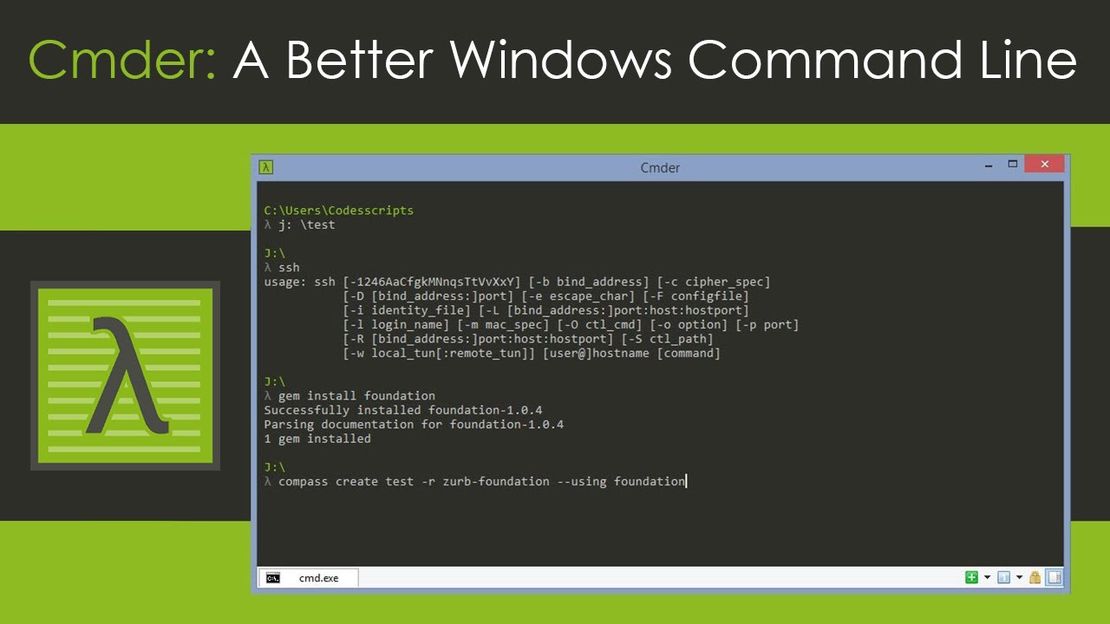
Cmder is a great replacement for Windows command line terminal, not only default supporting Git, but even integrating some Linux tool commands. Besides UI, the configuration freedom for Windows system context menu integration is also quite high.
Idea
When installing multiple JDKs and needing to switch, usually you temporarily replace JAVA_HOME and PATH in the startup bat of the specified program. Very simple but each time you need to write a segment; sometimes when needing to change runtime, you need to modify. Simple but tedious. Since Cmder itself comes with an initialization script. Theoretically, just add JAVA_HOME and PATH replacement commands into it.
Method
The principle is simple, but how to achieve theoretical configuration in a tool is usually the time-consuming part. Moreover, the tool may have multiple places to modify; finding the optimal method is also time-consuming. Below is what I personally consider the optimal method. No need to edit or add any files - directly add in settings.
Open Cmder settings, click into 【Startup - Tasks】 settings
Copy an existing task (better to open cmder as administrator), add appropriate suffix, e.g., jdk7
Modify command group content as follows
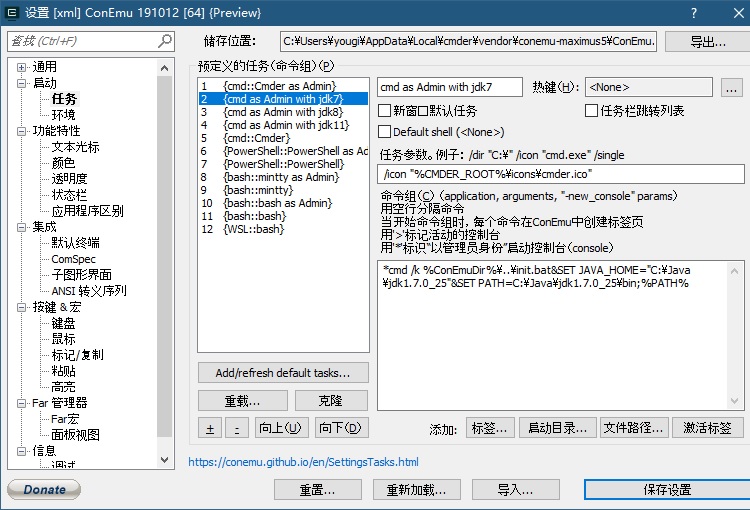
The following text is for copy-paste
*cmd /k %ConEmuDir%\..\init.bat&SET JAVA_HOME="C:\Java\jdk1.7.0_25"&SET PATH=C:\Java\jdk1.7.0_25\bin;%PATH%Click into 【Integration】 settings
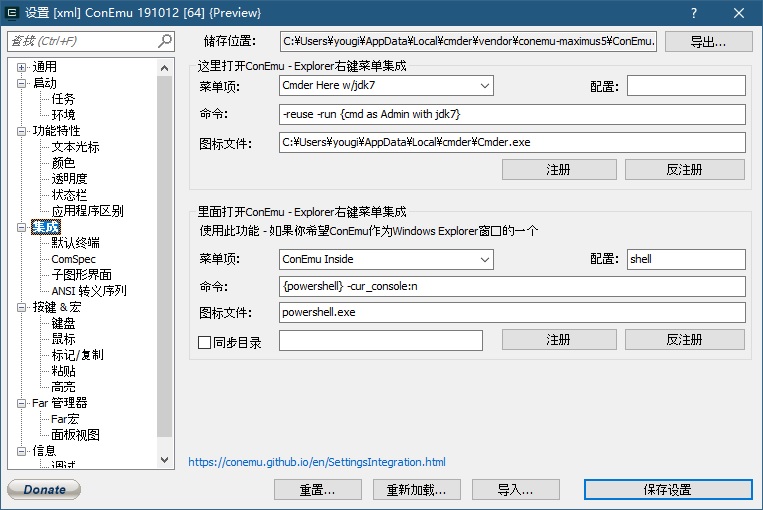
Select a menu item (e.g., Cmder Here), change menu item name (e.g., Cmder Here w/jdk7), command (use the newly created jdk7 task), then click 【Register】
Verification
You will find that in Windows system context menu (right-click menu), there is an additional 【Cmder Here w/jdk7】.
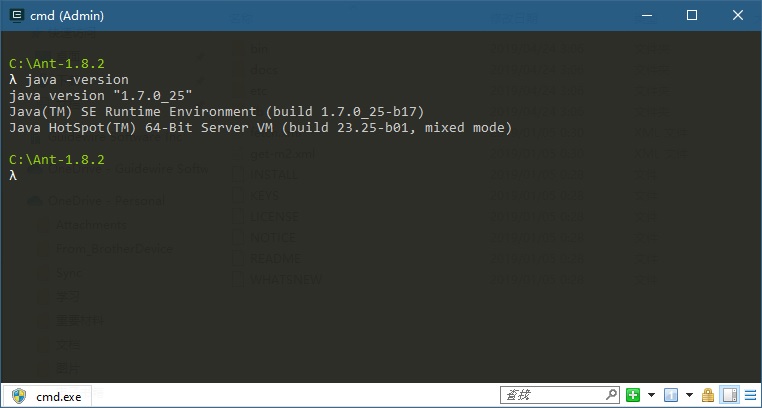
Right-click this item in any folder, and it will launch a cmder command line window.
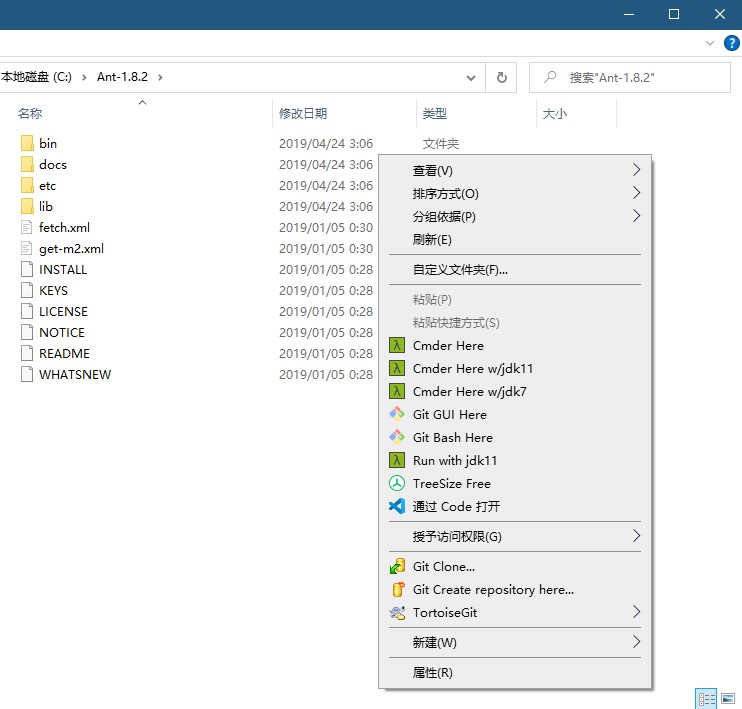 Enter java -version to confirm the pre-set Java environment
Application and TODO
The above utilizes Cmder’s most basic 【open terminal in folder】 function to achieve opening command terminal with specified runtime under specific PATH.
- Similarly, it can be applied to any PATH-based runtime environment switching.
- Cmder can also pass selected files as parameters. I haven’t succeeded in setting this up yet. Theoretically, it should be possible to specify Java JDK version to run selected bat. Adding this function would make it more comfortable to use. If any friend knows, hope to share the setup method, command group content.